How to add a business card to Google Wallet Your business card, in Google Wallet.
Four steps and about a minute on an Android phone. A card that shares and updates gets into Google Wallet as a pass a service issues to it, so the card has to come from one. A photo of a paper card will not do that.
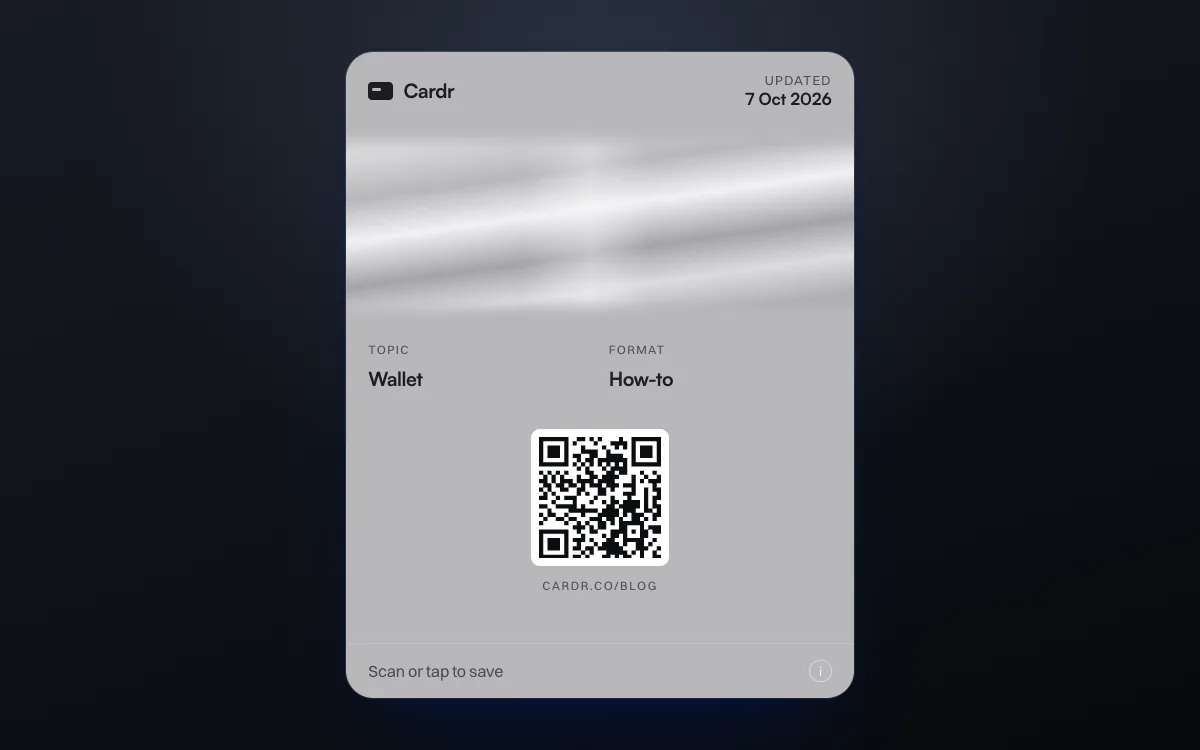
To add a business card to Google Wallet, make the card with a service that issues Google Wallet passes, open it on your Android phone and tap Add to Google Wallet, then Save. On Cardr this is free. Google Wallet needs Android 9 or later, in a country where Google offers it. You can also start on a computer: scan the code it shows with your phone, or save the pass to your Google account and it appears on your phone.
Four steps, about a minute.
Make the card, open it on your Android phone, tap Add to Google Wallet and Save, and share it from the Wallet app. Here they are with the detail.
-
01
Make a card that is issued as a Google Wallet pass
Google Wallet keeps passes that a business issues to it. On Cardr that is the free plan: your name, role, links and a design, in about a minute at cardr.co.
-
02
Open your card on your Android phone
Sign in on your Android phone and open the Card tab of your dashboard. Add to Google Wallet is under On your phone. It is also on your pass page, cardr.co/me/pass, and on the last screen when you finish making a card. Google Wallet needs Android 9 or later with Google Play services, in a country where Google offers it.
-
03
Tap Add to Google Wallet, then Save
Google shows your card with a Save button. Tap it and the card goes into Google Wallet, beside your boarding passes and loyalty cards.
-
04
Share it from Google Wallet
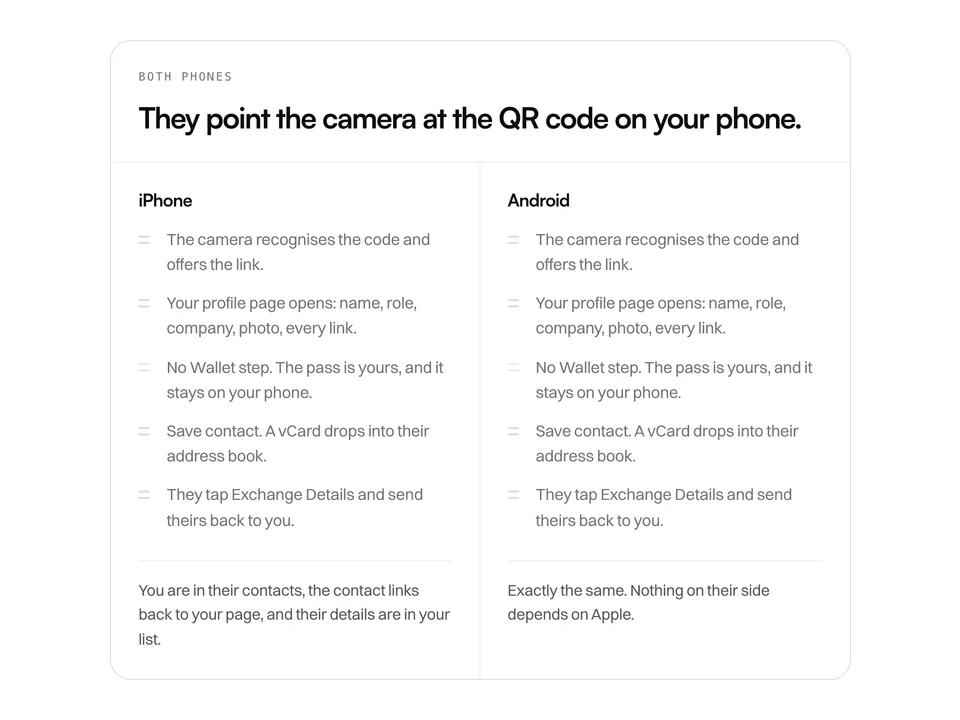
Open Google Wallet and tap your card. The QR code on it opens your page on their phone, iPhone or Android, and their details come back to you.
Create my free cardThe Google Wallet pass is on the free plan. No card details taken.
Add it from a computer instead.
You do not have to start on the phone. The computer shows a code your phone scans, or saves the pass straight to your Google account, and it appears in Google Wallet on your Android phone.
Sign in at cardr.co on the computer, open the Card tab and choose Add to Google Wallet under On your phone. A code appears. Point your Android phone’s camera at it, and your card opens on the phone, signed in: tap Add to Google Wallet, then Save.
Or save it to Google Wallet from this computer, with the link under the code. Use the Google account your phone is signed into, then open Google Wallet on the phone and the card is there.
What the card looks like.
Your company, if you add one, beside your logo, your name with your role under it, whichever of your email, phone and website your card has, and a QR code that opens your page. Your design sets the colour, and some designs add artwork.
Designs with artwork, such as Intaglio and Aurora, carry it as a full-width picture on the pass. Intaglio and Aurora are Pro designs. The other designs, including the free Oxford, set the pass’s colour and show no picture. Your photo, or your company’s logo on a team card, goes in the small round logo, not in the artwork.
Here is the artwork of a Google Wallet pass in the Intaglio design, drawn by the same code that makes every real pass. Google Wallet places it on the pass and draws the text around it itself.

It updates itself.
Edit your card and the pass in Google Wallet changes with it. You do not add it again.
Change your job title or your number in Cardr and the pass in Google Wallet follows, as does your page. The QR code opens your page, so whoever scans it sees your current details.
If Add to Google Wallet does nothing.
Almost always the page is open in an app’s own browser, or the phone cannot run Google Wallet.
- You opened it inside another app. An app’s built-in browser cannot hand a pass to Google Wallet. Open the same page in Chrome and tap the button there.
- The phone is too old, or has no Google Play services. Google says Google Wallet needs Android 9 or later and up-to-date Google Play services. If yours does not have them, use Show my code full screen from the same place: it shows the same QR code and can be kept on your home screen.
- Your country is not on Google’s list. Google lists the countries it supports, and some passes are limited to some of them. The United Kingdom is on the list. Elsewhere, Show my code works the same way.
Create my free cardAbout a minute to build. Free forever.
Questions, answered.
Is it free?
Yes, on every plan. The Google Wallet pass is part of the free plan, with no expiry and no card details taken.
Does the other person need Google Wallet?
No. They scan your QR code and your page opens in their browser, on any phone.
Can I add a paper business card to Google Wallet?
Not as a working card. Google Wallet’s photo option is for passes that have a barcode or QR code: it saves that code from your photo as a pass and keeps the photo beneath it. A paper business card has no such code to save, and nothing links a pass made this way back to you, so it does not update when your details change. Make a digital card that is issued as a pass instead.
Does it work on Samsung phones?
Yes, through Google Wallet, on a Samsung phone with Android 9 or later and Google Play services.
Can I have it in Apple Wallet too?
Yes. On an iPhone the same card goes into Apple Wallet.
Keep reading
This is part of Apple Wallet business cards. Every other guide is on the guides index.
-
Digital business cards on Android
The most common objection, answered straight rather than sold around.
-
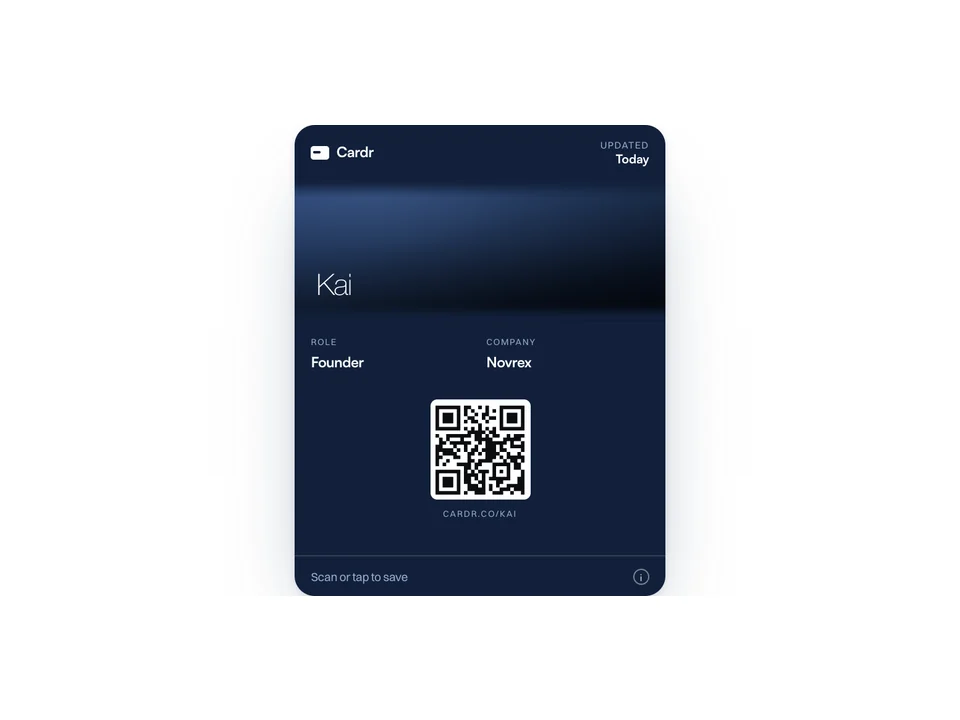
Add a business card to Apple Wallet
Five steps. The only catch is that Wallet will not take a photo or a PDF.
-
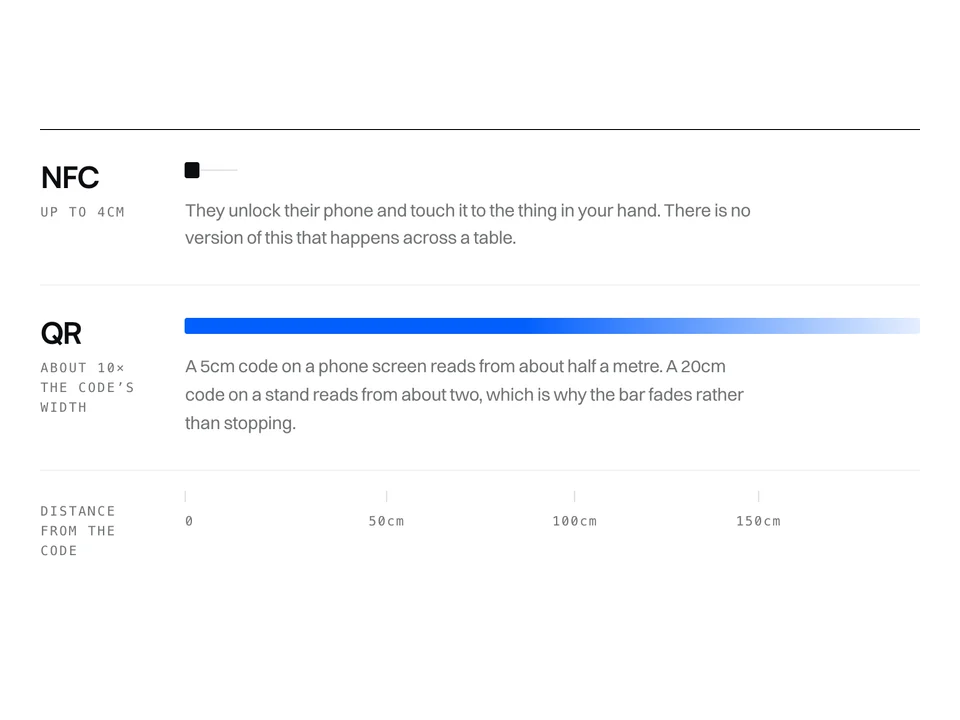
NFC vs QR for business cards
They fail in different places, and the distance between you decides which one matters.
Free forever. About a minute to build.
Nothing for the other person to install, and no card details to start.